What information is required for connection?
Windows VDS Before connecting to , check from the customer panel that the installation of the server is completed. Server address, authorized username and password are required. VPN or if access via a private network is defined, also learn the connection pattern. This guide is for accessing your current server; Installing an RDP application alone does not create a server service. If you do not have a server yet, you can examine Windows desktop VDS options.
1. Prepare address and access information
Find the access information for your server on the panel. Do not confuse the address with another product or old server. Use username and password securely; Do not share screenshots or open messages. If the installation is in progress, wait for the server to be ready. If access is restricted via VPN, establish the required VPN connection before attempting remote desktop. Trying on the wrong network may result in a connection error.
2. Turn on Remote Desktop Connection
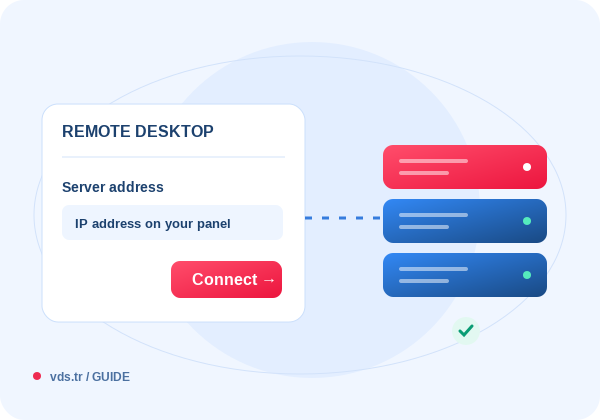
Search for and open the Remote Desktop Connection application from the Start menu on your Windows computer. Type the server address given on your panel in the Computer field and select the Connect option. Use the correct user account when prompted. Screen names may vary depending on the version of the application. If you are going to connect from another device or operating system, review the client and installation documentation that supports that device.
3. Check session information and destination
When entering the username and password, watch for problems such as unnecessary spaces, keyboard layout, or old saved password. If an unexpected identity or certificate warning appears during the connection, do not continue without verifying the target address. Do not save the password in the browser or on shared devices without control. When logged in, check that you are on the correct server and that the application you want to run is accessible.
What should you look for next if you can't connect?
First check your own internet connection and server status on the panel. Then examine the address, user information, and VPN connection, if available. Determine whether the error occurs before the connection is established or while logging in. Instead of turning off the firewall entirely or making the connection public, identify the source of the problem. If it is necessary to change authorization and network settings, contact technical support to avoid losing access.
Closing the connection and shutting down the server are different
Closing the remote desktop window does not mean you are directly shutting down the server. However, how your application behaves when the session is interrupted or the user is logged out depends on the settings and software. If you're running a long-running task, test this behavior beforehand. Don't plan your work with the assumption that every program will continue to work when your computer shuts down; Verify how the application works.
Plan access for regular use
Guide to limiting server access with VPN →
Determine which applications users will access in jobs such as accounting, ERP and backoffice. Review permissions when teams change; Use strong and unique passwords. Consider private VPN and local network options when necessary. Also plan where the files will be kept and the backup pattern. Windows trial installation does not mean that a Windows or application license is included; Please also check the concurrent use conditions.
Compare Windows desktop VDS packages
Check out the options related to this article with their current prices. Evaluate resources according to the needs of your own application.
Current packages and prices are loading…
Curiosities
Is VPN mandatory for RDP connection?
It is not mandatory for every connection. If the server's access is restricted by VPN, a VPN connection is required first. Check the access method you will use based on your service's network configuration.
How to Connect to a Windows VDS: An RDP Guide
Before connecting to Windows VDS, check from the customer panel that the installation of the server is completed. Server address, authorized username and password are required. If access via VPN or private network is defined, also learn the connection pattern. This guide is for accessing your current server; Installing an RDP application alone does not create a server service. If you do not have a server yet, you can examine Windows desktop VDS options.
Where can I see current packages and prices?
You can compare live packages and supported payment periods on the relevant product page. Current price and availability are checked again before ordering.
Source and scope
Microsoft: Remote Desktop access and connection steps ↗
This guide has been prepared by the VDS.tr Publishing Team to assist in service selection. Current product scope on the relevant service page, service provider and broadcast method on the resources page you can review. Source selection and security steps vary depending on your application.
VDS purchasing steps · Data center infrastructure · Business email